

Learn Coding Visually
Learn to code with interactive, live-preview playgrounds — HTML, CSS, JavaScript, React & more.
 HTML Playground42 lessons · Click-based · Live preview
 CSS PlaygroundLearn CSS with a live editor
 JavaScript Playground60 lessons · DOM · Async · Canvas
 React PlaygroundLearn React with a live code editor
 GSAP PlaygroundLearn GSAP animation interactively
 SVG Playground44 lessons · shapes · paths · animation
 SCSS Playground45 lessons · Sass modules · tokens
 Tailwind PlaygroundLearn Tailwind CSS with a live editor
 Bootstrap 5 Playground50 lessons · live preview
Lottie Success Checkmark Loader — Free HTML CSS JS Snippet
Lottie Success Checkmark Loader · Loaders · Plain HTML, CSS & JS · Live preview
What's included
Features
About this UI Snippet
Lottie Success Checkmark Loader — Animated Processing State With Checkmark Completion
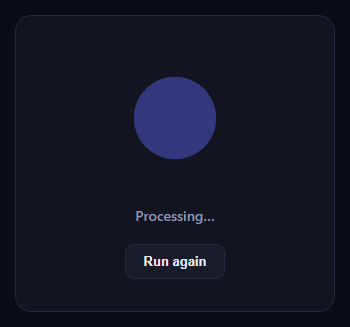
This snippet shows the common "processing then success" loading pattern using the real lottie-web library rather than a CSS spinner. A small pulsing circle animation plays while work is simulated, then smoothly hands off to a static green checkmark.
Loading the animation
The lottie-web UMD build is loaded from a CDN via cdnUrls, exposing a global lottie object. runSequence() calls lottie.loadAnimation({ container, renderer: 'svg', loop: true, autoplay: true, animationData }) against an inline animation JSON object — no external .json file is fetched, keeping the snippet fully self-contained.
The handoff to success
After roughly two seconds, lottieInstance.stop() halts the Lottie player, the Lottie container is hidden, and a plain SVG checkmark inside a green circle is revealed with a spring-like CSS scale transition — a lightweight way to combine a vector animation library with a simple CSS-driven completion state.
Restartable
The "Run again" button calls the same runSequence() function, which destroys the previous Lottie instance before creating a fresh one, so the whole processing-to-success cycle can be replayed without leaking animation instances.
Build with AI
Build, Understand, Optimize, and Extend It With AI
Hand this snippet's HTML, CSS, and JavaScript to an AI coding assistant like Claude and ask it to adapt "Lottie Success Checkmark Loader" to your project — restyle it to match your design system, wire it up to real data instead of the static example, or port it to the framework you're building in.
Prompt to recreate it
Copy this into your AI assistant of choice to build the effect from scratch, or as a jumping-off point for your own variant:
Build a loaders component called "Lottie Success Checkmark Loader" using plain HTML, CSS, and vanilla JavaScript — no framework, no build step.

Requirements:
- Match the structure and behavior of the "Lottie Success Checkmark Loader" snippet from the UI Snippets Library.
- Keep the markup semantic and the styling self-contained (no external dependencies beyond what the original snippet uses).
- Keep the JavaScript vanilla, with no framework runtime required.
- Make it easy to restyle via CSS custom properties or class overrides so it can be dropped into a real project.
Want to tighten it up first? Run this prompt through the AI Prompt Studio to score it across 8 quality dimensions, catch anti-patterns, and tune the wording for Claude, ChatGPT, or Gemini before you paste it in.
Source Code
<div class="lsc-card">
  <div class="lsc-stage">
    <div class="lsc-lottie" id="lscLottie"></div>
    <div class="lsc-checkmark" id="lscCheckmark">
      <svg width="46" height="46" viewBox="0 0 24 24" fill="none" stroke="#fff" stroke-width="3" stroke-linecap="round" stroke-linejoin="round">
        <path d="M5 13l4 4L19 7" />
      </svg>
    </div>
  </div>
  <div class="lsc-status" id="lscStatus">Processing…</div>
  <button class="lsc-btn" id="lscRestart" type="button">Run again</button>
</div>*{box-sizing:border-box}
body{font-family:system-ui,-apple-system,sans-serif;background:#0b0d14;min-height:100vh;display:flex;align-items:center;justify-content:center;padding:24px}
.lsc-card{font-family:system-ui,-apple-system,sans-serif;background:#12141f;color:#e7e9f5;border:1px solid #262a3d;border-radius:16px;padding:32px;max-width:320px;width:100%;text-align:center}
.lsc-stage{position:relative;width:140px;height:140px;margin:0 auto 18px;display:flex;align-items:center;justify-content:center}
.lsc-lottie{width:140px;height:140px}
.lsc-checkmark{position:absolute;inset:0;display:flex;align-items:center;justify-content:center;background:#22c55e;border-radius:50%;width:90px;height:90px;margin:auto;opacity:0;transform:scale(.6);transition:opacity .35s ease,transform .35s cubic-bezier(.34,1.56,.64,1)}
.lsc-checkmark.lsc-show{opacity:1;transform:scale(1)}
.lsc-status{font-size:14px;font-weight:600;color:#9096b3;margin-bottom:18px;min-height:20px}
.lsc-btn{background:#181b2a;border:1px solid #262a3d;color:#e7e9f5;font-size:13px;font-weight:600;padding:9px 18px;border-radius:9px;cursor:pointer}
.lsc-btn:hover{background:#20233a}// Minimal inline Lottie animation JSON — a pulsing/scaling circle used as
// the "processing" indicator before the success state takes over.
var animData = {
v: "5.7.4", fr: 30, ip: 0, op: 60, w: 200, h: 200, nm: "pulse", ddd: 0, assets: [],
layers: [{
ddd: 0, ind: 1, ty: 4, nm: "circle", sr: 1,
ks: {
o: { a: 1, k: [
{ i: { x: [0.667], y: [1] }, o: { x: [0.333], y: [0] }, t: 0, s: [100], e: [40] },
{ i: { x: [0.667], y: [1] }, o: { x: [0.333], y: [0] }, t: 30, s: [40], e: [100] },
{ t: 60, s: [100] }
] },
r: { a: 0, k: 0 },
p: { a: 0, k: [100, 100, 0] },
a: { a: 0, k: [0, 0, 0] },
s: { a: 1, k: [
{ i: { x: [0.667, 0.667, 0.667], y: [1, 1, 1] }, o: { x: [0.333, 0.333, 0.333], y: [0, 0, 0] }, t: 0, s: [70, 70, 100], e: [100, 100, 100] },
{ i: { x: [0.667, 0.667, 0.667], y: [1, 1, 1] }, o: { x: [0.333, 0.333, 0.333], y: [0, 0, 0] }, t: 30, s: [100, 100, 100], e: [70, 70, 100] },
{ t: 60, s: [70, 70, 100] }
] }
},
ao: 0,
shapes: [{
ty: "gr",
it: [
{ ty: "el", p: { a: 0, k: [0, 0] }, s: { a: 0, k: [120, 120] } },
{ ty: "fl", c: { a: 0, k: [0.388, 0.4, 0.965, 1] }, o: { a: 0, k: 100 } },
{ ty: "tr", p: { a: 0, k: [0, 0] }, a: { a: 0, k: [0, 0] }, s: { a: 0, k: [100, 100] }, r: { a: 0, k: 0 }, o: { a: 0, k: 100 } }
]
}],
ip: 0, op: 60, st: 0, bm: 0
}]
};
var lottieContainer = document.getElementById('lscLottie');
var checkmarkEl = document.getElementById('lscCheckmark');
var statusEl = document.getElementById('lscStatus');
var restartBtn = document.getElementById('lscRestart');
var lottieInstance = null;
var timeoutId = null;
function runSequence() {
clearTimeout(timeoutId);
checkmarkEl.classList.remove('lsc-show');
lottieContainer.style.display = 'block';
statusEl.textContent = 'Processing…';
if (lottieInstance) {
lottieInstance.destroy();
}
lottieInstance = lottie.loadAnimation({
container: lottieContainer,
renderer: 'svg',
loop: true,
autoplay: true,
animationData: animData,
});
timeoutId = setTimeout(function () {
lottieInstance.stop();
lottieContainer.style.display = 'none';
checkmarkEl.classList.add('lsc-show');
statusEl.textContent = 'Success!';
}, 2200);
}
restartBtn.addEventListener('click', runSequence);
runSequence();Step by step
How to Use
- 1Load the snippetClick "Lottie Success Checkmark Loader" in the sidebar to load its HTML, CSS, and JS into the editor panels. The preview updates instantly.
- 2Edit the codeModify any panel — HTML, CSS, or JS. The preview refreshes as you type. Use Reset in each panel header to restore the original.
- 3Preview on devicesClick the Mobile (375px), Tablet (768px), or Desktop buttons in the preview header to check responsiveness.
- 4Export in your formatClick "HTML" to download a standalone file, "JSX" for a React component, "Tailwind" for a React + Tailwind CSS component, "Tailwind HTML" for a standalone HTML file with Tailwind CDN, "Vue" for a Vue 3 SFC with <template>/<script setup>/<style scoped>, or "Angular" for a standalone Angular .component.ts file. "Copy all" copies the full code to clipboard.
- 5Save your versionClick "Save as", type a name, and press Enter. Your snippet saves to IndexedDB and appears in the Saved tab.
Real-world uses
Common Use Cases
Got questions?
Frequently Asked Questions
No. The animationData object is defined inline in the JavaScript, so the snippet is fully self-contained aside from loading the lottie-web library itself.
A setTimeout simulates completed work; in a real app you would call lottieInstance.stop() and swap to the checkmark inside your actual success callback instead of a fixed delay.
Yes — clone the pattern used for the checkmark, swapping in a red circle and an X icon, and branch the timeout callback based on your real success/failure result.