


Learn Coding Visually
Learn to code with interactive, live-preview playgrounds — HTML, CSS, JavaScript, React & more.
 HTML Playground42 lessons · Click-based · Live preview
 CSS PlaygroundLearn CSS with a live editor
 JavaScript Playground60 lessons · DOM · Async · Canvas
 React PlaygroundLearn React with a live code editor
 GSAP PlaygroundLearn GSAP animation interactively
 SVG Playground44 lessons · shapes · paths · animation
 SCSS Playground45 lessons · Sass modules · tokens
 Tailwind PlaygroundLearn Tailwind CSS with a live editor
 Bootstrap 5 Playground50 lessons · live preview
Bootstrap Price Range Slider — Free HTML CSS JS Snippet
Bootstrap Price Range Slider · Forms · Plain HTML, CSS & JS · Live preview
What's included
Features
About this UI Snippet
Bootstrap Price Range Slider — HTML, CSS & JavaScript
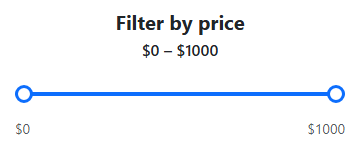
A dual-thumb slider is not a single form control in HTML — there is no native two-handle range input — so this snippet builds one from two ordinary <input type="range"> elements, #bsrsMin and #bsrsMax, stacked exactly on top of each other with position: absolute, top: 0, left: 0, width: 100% inside a shared .bsrs-track-wrap container. Both inputs share the same min, max, and step, so their thumbs travel the identical horizontal distance and stay pixel-aligned with each other and with the visual track underneath.
The trickiest CSS problem with two overlapping range inputs is that each one's own invisible hit-area normally spans its *entire* track width, so the top input would swallow every click across the whole slider and the bottom one would be completely unreachable. This snippet solves it the standard way: pointer-events: none is set on both .bsrs-range elements at the container level, disabling click/drag everywhere by default, and then re-enabled specifically on ::-webkit-slider-thumb and ::-moz-range-thumb with pointer-events: auto — so only the small circular thumb itself is interactive, not the invisible full-width track behind it. That alone still leaves an edge case: when the two thumbs are dragged close together, whichever input is stacked on top intercepts clicks meant for the one underneath. syncStacking() handles this by comparing the min thumb's position against the slider's midpoint and swapping zIndex between the two inputs accordingly, so whichever thumb is likely closer to being grabbed next stays on top.
Keeping the two values from crossing is handled independently in each input's own input listener: dragging the min thumb clamps its value to never exceed maxRange.value - MIN_GAP, and dragging the max thumb clamps it to never fall below minRange.value + MIN_GAP. MIN_GAP (set to 20) exists specifically so the two thumbs can never fully collide into the exact same pixel position, which would make it impossible to tell them apart or grab one specifically with a mouse.
updateFill() computes each thumb's value as a percentage of the full RANGE_MIN–RANGE_MAX span and applies that percentage as left and width on a separate #bsrsFill div sitting between the gray .bsrs-track and the two range inputs — this is what produces the visually filled blue segment between the two handles, since neither native range input can render a filled segment starting anywhere but its own left edge. The live "$X – $Y" label is rebuilt from the two current numeric values on every input event on either slider, so dragging either thumb updates both the fill and the label in the same frame.
Build with AI
Build, Understand, Optimize, and Extend It With AI
Hand this snippet's HTML, CSS, and JS to an AI coding assistant like Claude and ask it to add editable number inputs next to the slider that stay in sync with the handles, or to add tick marks at common price breakpoints along the track. It's also worth asking for a non-linear scale (e.g. logarithmic) for a wider price range.
Prompt to recreate it
Copy this into your AI assistant of choice to build the effect from scratch, or as a jumping-off point for your own variant:
Build a Bootstrap 5.3 dual-thumb price range slider using two native overlapping <input type="range"> elements, using the real Bootstrap CDN framework (bootstrap.min.css and bootstrap.bundle.min.js) for the surrounding card, not custom CSS made to resemble Bootstrap.

Requirements:
- Two native range inputs sharing identical min, max, and step values, absolutely positioned exactly on top of each other inside one container so their thumbs travel the same track.
- Disable pointer events on the full width of both inputs by default, and re-enable pointer events only on each input's thumb (both -webkit-slider-thumb and -moz-range-thumb), so the invisible full-width track of one input never blocks interaction with the other's thumb.
- Prevent the two handles from crossing: dragging the lower handle must never let its value exceed the upper handle's value minus a small fixed gap, and vice versa for the upper handle.
- When the two handles get close together, dynamically adjust which input's z-index is higher based on position, so neither handle becomes permanently unreachable by mouse.
- Render a separate filled bar between the two handle positions, computed from both values as percentages of the full range, since neither native input alone can render a segment that doesn't start at its own edge.
- Display a live "$X – $Y" label above the slider that updates immediately as either handle is dragged.
Want to tighten it up first? Run this prompt through the AI Prompt Studio to score it across 8 quality dimensions, catch anti-patterns, and tune the wording for Claude, ChatGPT, or Gemini before you paste it in.
Source Code
<div class="container py-5 d-flex justify-content-center">
<div class="card bsrs-card">
<div class="card-body p-4">
<h5 class="fw-bold mb-1 text-center">Filter by price</h5>
<p class="text-center fw-semibold mb-3" id="bsrsLabel">$0 – $1000</p>
<div class="bsrs-track-wrap mb-2">
<div class="bsrs-track"></div>
<div class="bsrs-fill" id="bsrsFill"></div>
<input type="range" min="0" max="1000" step="10" value="0" class="bsrs-range" id="bsrsMin">
<input type="range" min="0" max="1000" step="10" value="1000" class="bsrs-range" id="bsrsMax">
</div>
<div class="d-flex justify-content-between small text-muted">
<span>$0</span>
<span>$1000</span>
</div>
</div>
</div>
</div>.bsrs-card { width: 380px; border: 1px solid #eceef1; border-radius: 14px; }
.bsrs-track-wrap { position: relative; height: 32px; }
.bsrs-track { position: absolute; top: 14px; left: 0; right: 0; height: 4px; background: #dee2e6; border-radius: 2px; }
.bsrs-fill { position: absolute; top: 14px; height: 4px; background: #0d6efd; border-radius: 2px; }
.bsrs-range { position: absolute; top: 0; left: 0; width: 100%; height: 32px; margin: 0; background: transparent; appearance: none; -webkit-appearance: none; pointer-events: none; }
.bsrs-range::-webkit-slider-runnable-track { background: transparent; }
.bsrs-range::-webkit-slider-thumb { appearance: none; -webkit-appearance: none; pointer-events: auto; width: 18px; height: 18px; border-radius: 50%; background: #fff; border: 3px solid #0d6efd; cursor: pointer; margin-top: 0; }
.bsrs-range::-moz-range-track { background: transparent; border: 0; }
.bsrs-range::-moz-range-thumb { pointer-events: auto; width: 18px; height: 18px; border-radius: 50%; background: #fff; border: 3px solid #0d6efd; cursor: pointer; }const minRange = document.getElementById('bsrsMin');
const maxRange = document.getElementById('bsrsMax');
const fill = document.getElementById('bsrsFill');
const label = document.getElementById('bsrsLabel');
const RANGE_MIN = 0;
const RANGE_MAX = 1000;
const MIN_GAP = 20;
function updateFill() {
const min = Number(minRange.value);
const max = Number(maxRange.value);
const leftPct = ((min - RANGE_MIN) / (RANGE_MAX - RANGE_MIN)) * 100;
const rightPct = ((max - RANGE_MIN) / (RANGE_MAX - RANGE_MIN)) * 100;
fill.style.left = leftPct + '%';
fill.style.width = (rightPct - leftPct) + '%';
label.textContent = '$' + min + ' \u2013 $' + max;
}
// Keeps the two overlapping range inputs from crossing each other by
// clamping each one's value against the other, minus a small MIN_GAP so
// the two thumbs never fully overlap and become unreachable by mouse.
minRange.addEventListener('input', () => {
if (Number(minRange.value) > Number(maxRange.value) - MIN_GAP) {
minRange.value = Number(maxRange.value) - MIN_GAP;
}
updateFill();
});
maxRange.addEventListener('input', () => {
if (Number(maxRange.value) < Number(minRange.value) + MIN_GAP) {
maxRange.value = Number(minRange.value) + MIN_GAP;
}
updateFill();
});
// The min thumb's input sits on top and would normally intercept every
// click across the whole track; raising the max thumb's z-index whenever
// the min thumb is pushed near the top of the range lets the max thumb
// still be grabbed even when the two values are close together.
function syncStacking() {
const min = Number(minRange.value);
const max = Number(maxRange.value);
const midpoint = (RANGE_MIN + RANGE_MAX) / 2;
minRange.style.zIndex = min > midpoint ? 3 : 2;
maxRange.style.zIndex = min > midpoint ? 2 : 3;
}
minRange.addEventListener('input', syncStacking);
maxRange.addEventListener('input', syncStacking);
updateFill();
syncStacking();Step by step
How to Use
- 1Load the snippetA card appears with a "$0 – $1000" label and a track with two circular handles at each end.
- 2Drag the left handle to the rightThe blue filled segment shrinks from the left, and the label updates live to something like "$220 – $1000".
- 3Drag the right handle to the leftThe filled segment shrinks from the right instead, and the label's upper value updates in real time.
- 4Try dragging the min handle past the max handleIt stops short of crossing, always leaving a small gap, rather than overtaking or hiding behind the other handle.
- 5Drag both handles close together near the middleYou can still grab and move either handle individually — the stacking order adjusts automatically so neither thumb becomes unreachable.
- 6Release either handleThe label and the blue filled segment stay exactly in sync with the two handle positions at all times, not just on release.
Real-world uses
Common Use Cases
Got questions?
Frequently Asked Questions
Native range inputs come with built-in keyboard support (arrow keys, Page Up/Down, Home/End), touch dragging, and accessibility semantics for free. Building a fully custom slider from scratch would mean reimplementing all of that manually, so overlapping two native inputs and layering the visuals is the more robust approach.
Yes. In React, hold minValue/maxValue in useState and compute the fill percentage and label in the render function instead of touching style properties directly; in Vue, use two v-model-bound refs with a computed fill style; in Angular, bind [(ngModel)] to two component properties and compute the fill width in the template or a getter.
Each input's own input event listener clamps its new value against the other input's current value minus or plus a fixed MIN_GAP (20 in this snippet) — the min handle can never be dragged past max minus the gap, and vice versa, so they never fully overlap or invert order.
Since both range inputs are visually stacked in the same space, whichever one has a higher stacking order intercepts pointer events across its full width even where invisible. syncStacking() raises whichever thumb is more likely to be the next target above the midpoint of the range, so both handles stay reachable even when dragged close together.
Keep the two native range inputs and all JS logic unchanged, then rebuild .bsrs-track and .bsrs-fill as Tailwind absolute inset-y-0 my-auto h-1 rounded-full divs with bg-gray-200 and bg-blue-600 respectively, and restyle the thumbs using Tailwind's arbitrary-value pseudo-element utilities or a small scoped style block for the vendor-prefixed thumb selectors.
Yes — native range inputs support touch dragging out of the box on mobile browsers, and because the pointer-events restriction only blocks the invisible track (not the thumb itself), tapping and dragging either visible handle works the same as with a mouse.